How Google Workspace Runs 80% of My Bookkeeping Business
Dec 28, 2025
Disclosure: This post contains an affiliate link for Google Workspace. If you sign up through my link, I may earn a small commission at no extra cost to you. I only recommend tools I actually use and love—and as you'll see, this one runs most of my business.
I used to have subscriptions for everything. A client portal. Scheduling software. Video conferencing. Document storage. File sharing. My credit card statement was a graveyard of $15-30/month charges, and half the time I couldn't remember what half of them were for.
Then I took a hard look at what I was actually using versus what was just sitting there collecting digital dust.
Turns out, I was already paying for a tool that could do almost all of it.
Google Workspace costs me $7.20/month. In this post, I'll show you exactly how I use it to run roughly 80% of my bookkeeping operations—client communication, document management, scheduling, and video calls. No fancy integrations. No complicated setup. Just one ecosystem doing the heavy lifting.
What's the other 20%? QuickBooks Online for the actual bookkeeping and Asana for task management. That's my entire tech stack. Three tools total.
Let me break down how each piece of Google Workspace earns its keep.
Google Drive: My Free Client Portal
The Problem It Solved
I looked into dedicated client portals. The good ones cost $30-50/month and required clients to create yet another login they'd inevitably forget the password to. Some of them were clunky. Others were overkill for what I actually needed.
Meanwhile, my actual workflow was a mess. Clients emailed me documents as attachments. I saved them to my computer. Sometimes I remembered to put them in a folder. Sometimes I didn't. Things got lost. Version control was a joke. I'd spend 20 minutes hunting for a W-9 a client swore they sent me three months ago.
How I Actually Use It
Every client gets a shared Google Drive folder with a consistent structure. Inside, I have subfolders for Onboarding Documents, Monthly Receipts & Documents, Monthly Reports, and Tax Documents. Same setup, every single client.
When clients need to send me something, they drag and drop it into their folder. No special instructions required. No learning a new system. Most people have used Google Drive before, so there's zero friction.
When I finish their monthly reports, I upload them to the same folder. Everything lives in one place. If a client wants to find their P&L from six months ago, they can grab it themselves without emailing me.
Why It Works
The search function alone is worth it. I can find any document in seconds. Sharing permissions let me control exactly who sees what. And here's the kicker—it's included in Workspace. No extra cost.
The mindset shift: A "client portal" doesn't have to be software built specifically for accountants. It just needs to be a secure, organized place where you and your client can both access files. Google Drive does that without the fancy branding or monthly fee.
Gmail: The Communication Hub
The Problem It Solved
I needed a professional email address—something that wasn't a gmail.com handle—without the headache of setting up custom email servers or figuring out DNS records at 11pm. I also needed to actually find things when clients asked about emails from months ago.
How I Actually Use It
Google Workspace gives me professional email with my own domain. Setup was straightforward—follow the instructions, verify a few things, done.
I use labels and filters to keep client communication organized. Each client gets a label. Emails from them automatically get tagged. When I need to find something, I search by label or keyword, and it actually works. No more scrolling through hundreds of messages trying to remember when someone sent something.
I've also set up email templates for the messages I send repeatedly—onboarding instructions, document request reminders, monthly check-in notes. Instead of rewriting the same email for the hundredth time, I pop in a template and customize the details.
The Small Things That Matter
Conversation threading keeps related emails together. Stars help me track what needs follow-up. Snooze lets me push something out of my inbox until I'm ready to deal with it. None of this is groundbreaking, but it works.
The real win is integration. When I'm writing an email and want to attach a file from Drive, it's right there. When I want to schedule a meeting, Calendar is one click away. When I need to hop on a call, I can start a Meet directly from the email thread. I'm not bouncing between platforms or copying links.
Google Calendar: Scheduling Without the Subscription
The Problem It Solved
I used to pay for Calendly. It was fine. But at $12/month, I started wondering if I really needed it when Google Calendar has built-in appointment scheduling that most people don't even know exists.
The back-and-forth emails were killing me before I had any scheduling tool. "Does Tuesday work?" "Tuesday's not great, how about Thursday?" "Thursday afternoon?" "I have a conflict at 2, what about 3?" For a 30-minute call, I was spending 15 minutes just finding a time.
How I Actually Use It
Google Calendar's appointment scheduling lets me create booking links for different types of meetings. I have one for 30-minute check-ins and another for 60-minute kickoff calls. Clients click the link, see my available times, and grab a slot. Confirmation emails go out automatically. The time blocks on my calendar immediately.
I've set up buffer time between meetings so I'm not running back-to-back all day. My availability only shows the hours I actually want to take calls—no more clients booking at 7am or 6pm because technically my calendar was open.
The Boundary Benefit
This one surprised me. When clients can only book during set windows, they stop expecting me to be available whenever they feel like chatting. The tool enforces boundaries I used to struggle enforcing myself.
I used to feel guilty saying "I'm not available then." Now the calendar says it for me. It's not personal—it's just how the system works.
Google Meet: Video Calls Without Another App
The Problem It Solved
Zoom worked fine. But it was another subscription, another app to keep updated, and occasionally clients had trouble with the download or the link didn't work right. Small friction, but friction adds up.
How I Actually Use It
I use Google Meet for kickoff calls with new clients, screen sharing when I need to walk someone through their QuickBooks or explain something in their reports, quarterly check-ins for clients who want face time, and quick calls when something's easier to explain out loud than type out.
When I create a Calendar event, a Meet link generates automatically. No extra steps. Clients click the link and they're in—no download required.
The Human Element
I could run my entire practice over email. Plenty of bookkeepers do. But seeing a client's face when we review their numbers changes the conversation. They ask better questions. They actually absorb the information instead of skimming it. There's something about being on a call that makes financial data feel less intimidating.
Meet makes that easy without adding complexity to my setup.
How It All Connects (The Real Magic)
The individual tools are solid. But the real value is how they work together.
Schedule a call in Calendar and a Meet link auto-generates. The client gets a confirmation with the link. Done.
A client uploads a document to their Drive folder and I get notified. I can reference it during our Meet call without hunting for it.
Send an email with a Drive link and the client clicks straight to exactly what I'm talking about. No confusion about which version of the file I mean.
Everything is searchable from one place. One login. One ecosystem.
What I'm Not Dealing With
I don't copy Zoom links into calendar invites. I don't manage separate logins for five different platforms. I don't pay for integrations to make tools talk to each other. I don't teach clients how to use multiple systems.
The math: If I'd kept paying for separate tools—client portal ($40), scheduling software ($12), video conferencing ($15), cloud storage ($10)—that's nearly $80/month or close to $960/year. Google Workspace is under $90/year. For a solo practice watching expenses, that difference matters.
Ready to simplify your tech stack? If you want to try Google Workspace for your bookkeeping practice, you can sign up through my affiliate link here. You'll get the same tools I use every day, and I'll earn a small commission that helps support this blog.
The Bottom Line
Google Drive handles my client documents and acts as a portal. Gmail keeps communication professional and searchable. Calendar manages scheduling without a separate subscription. Meet gives me face-to-face client calls without another app.
One ecosystem. One login. Under $8/month.
We get sold on the idea that professional means complicated. That better tools require bigger price tags and steeper learning curves. But most bookkeeping practices don't need enterprise software—they need reliable, simple systems they'll actually use.
Google Workspace isn't flashy. It doesn't have "bookkeeper" anywhere in its marketing. But it does the job.
An Honest Caveat
This setup isn't for everyone. If you have a team, need advanced automations, or want built-in accounting-specific features, a dedicated practice management tool might make more sense. But if you're running a solo or small practice and want to keep things lean? This works.
Before you add another subscription to your stack, look at what you already have. You might be overcomplicating things—and overpaying—for problems that are already solved.
Want to See How I Use Google Drive with New Clients?
One of the biggest time-savers in my practice is having a repeatable system for onboarding. The shared folder structure is just one piece—the emails that guide clients through the process are where the magic really happens.
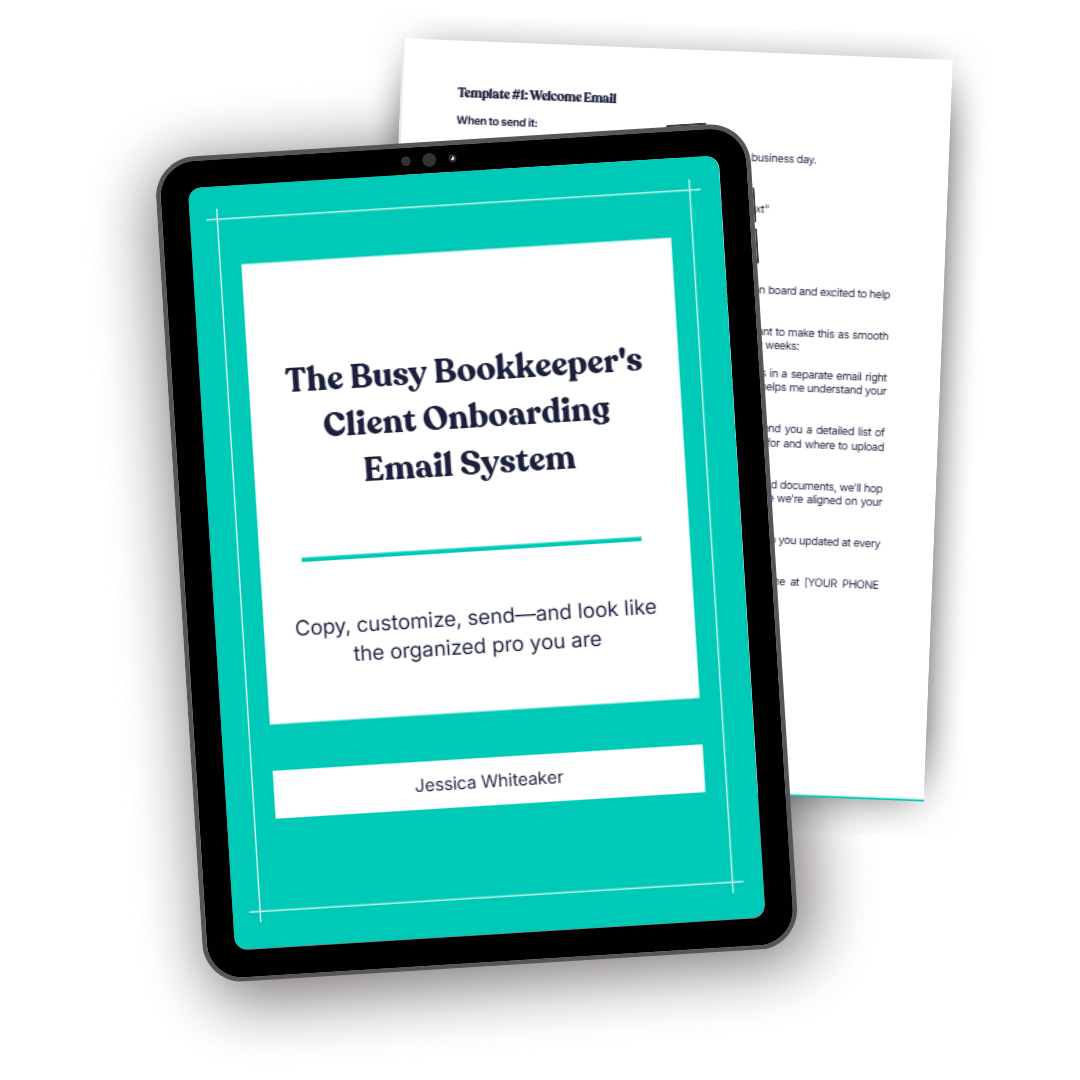
I've put together The Busy Bookkeeper's Client Onboarding Email System—a free guide with the exact email templates I use to welcome new clients, request documents, schedule kickoff calls, and set expectations from day one.
No more staring at a blank email wondering what to say. No more forgetting to mention something important. Just copy, customize with your details, and send.
Because a streamlined tech stack is great—but knowing exactly what to say at each step of onboarding is what makes it all actually work.